
A homepage that feels yours
Keep work tools, learning resources and personal sites together, without mixing everything into one list.
Your personal start page
Give the websites you use every day a home of their own. Bring your favorite links and online tools into a visual start page that you can organize around your routine.
Free beta · Browser-only storage · No cloud sync yet
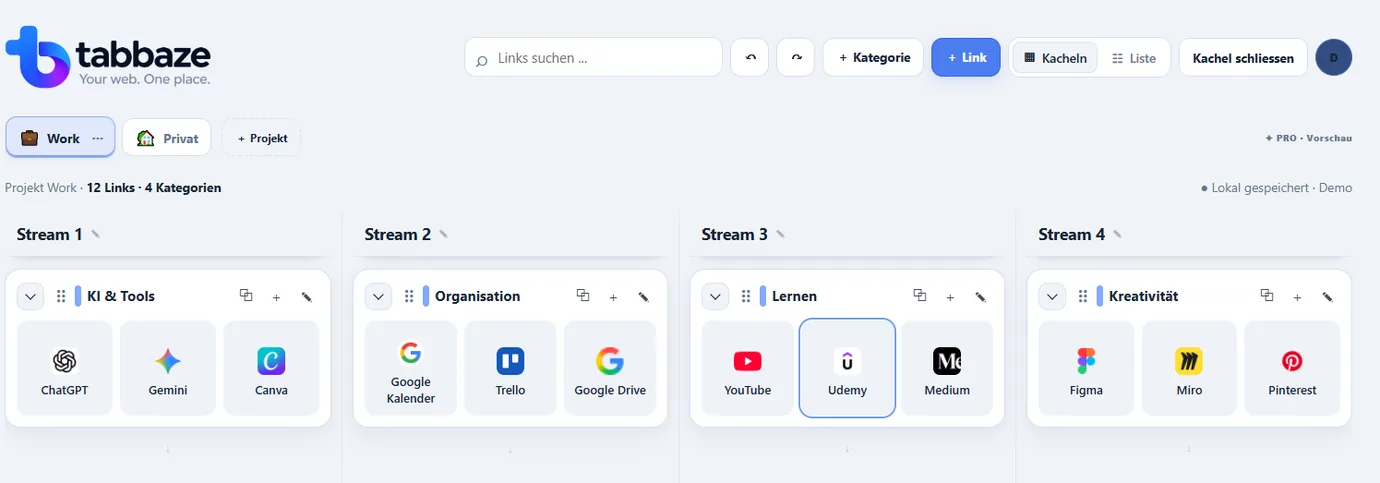
Why tabbaze
Keep work tools, learning resources and personal sites together, without mixing everything into one list.
Create projects and categories, arrange them across four lanes and choose the view that works for you.
Give your website tiles recognizable names, colors and logos.
Explore the actual workflow
Keep separate Canva URLs for projects, presentations and banners in one visual category. Rearrange the tiles with drag and drop.

Drag a tile to a new position or category. On touch devices: tap a tile, then tap its destination.
Example links only · Your actual workspace is not affectedThese are individual example links, not automatic Canva subfolders.
Organize your own linksA practical example
Choose the websites you open every week and separate personal tools from work resources.
This is a simplified illustration, not automatic importing of browser bookmarks.
Step by step
A personal homepage is a simple launchpad for the sites you visit often. With tabbaze, the layout is yours to arrange.
Visual cues make it easier to find familiar websites. Organize your links as tiles and adjust the details to fit your preferences.
Think in terms of recurring tasks instead of saving every site you encounter. A few well-chosen groups often work better than dozens of folders.
tabbaze works in your browser without an extension. If you want it to open when you start browsing, set the tabbaze URL as your homepage in your browser settings.
Make it yours
Compare three real screenshots from the tabbaze beta. These are actual interface examples.
The real tabbaze interface
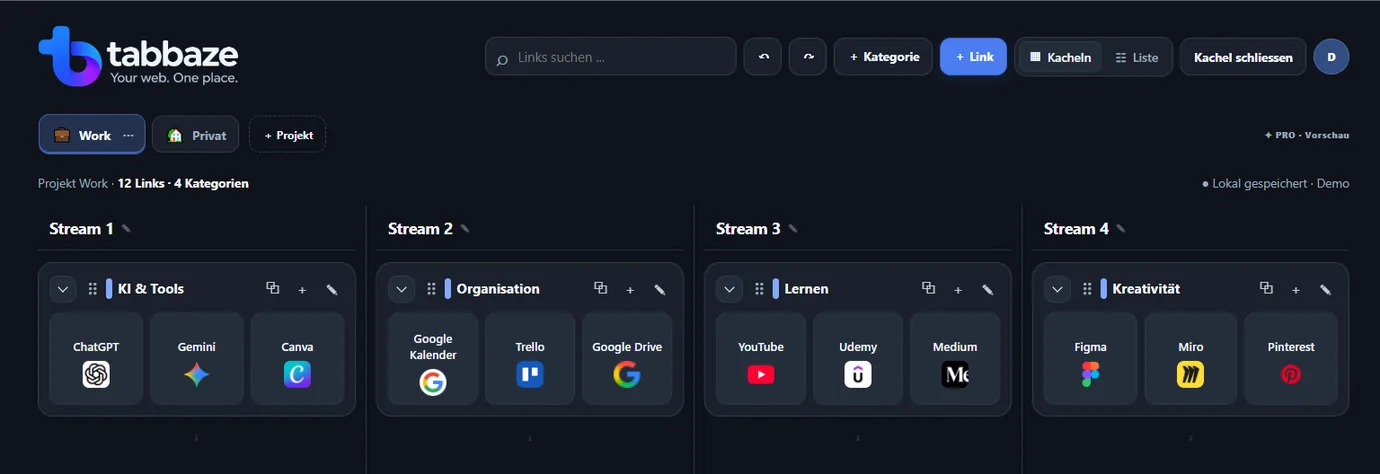
tabbaze · Your web. One place.
Try the free beta and build your own link collection. For now, your data stays in this browser.
FAQ
The current tabbaze beta is free to use. Paid plans are not available yet.
Yes. You can set the tabbaze URL as your browser homepage manually in your browser settings.
No. tabbaze is a webpage you can open in your browser or set as your homepage. It does not need an extension or automatically change your browser settings.
Start with a small set of websites you visit each week. You can add and reorganize links as your routine changes.
Not yet. The beta saves your workspace locally in each browser. JSON export and import are available in Free.